1.Getting started
New account
Open ommini.com/en/login.html?sektor=arac, choose the Sign Up tab and enter your name, email and password. Accounts created from this address are set up as Ommini Auto accounts, and every login takes you straight to the My Listings page.
After signing up, click the verification link sent to your email. On the free plan, your listing allowance is only available once your email is verified.
If you already have an Ommini account
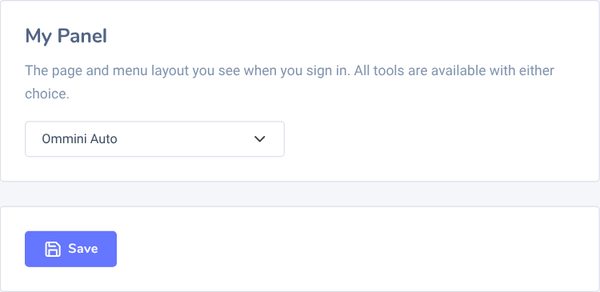
You do not need a new account. Go to Settings in the left menu, choose Ommini Auto in the My Panel box and press Save below it. From then on, logging in opens your vehicle listings and Ommini Auto appears at the top of the left menu. You can keep using Ommini Real Estate and the social media tools with the same account.
My Listings page
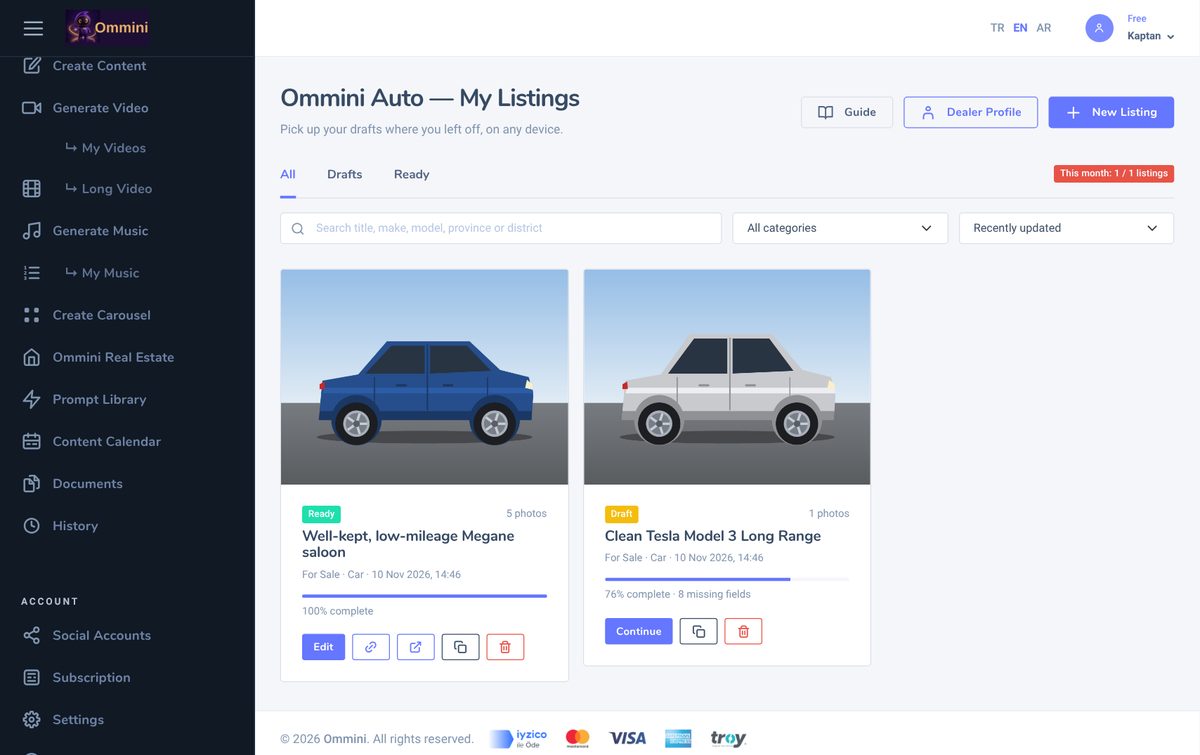
All your vehicle listings appear here as cards. Use the tabs at the top to see All, Drafts or Ready listings. Type a title, make, model, province or district into the search box to find a listing, filter by category with the list beside it, and sort by last updated, newest or price. The badge on the right shows how much of this month's allowance you have used (e.g. This month: 1 / 5 listings); it turns red when the allowance is used up.
2.Dealer Profile
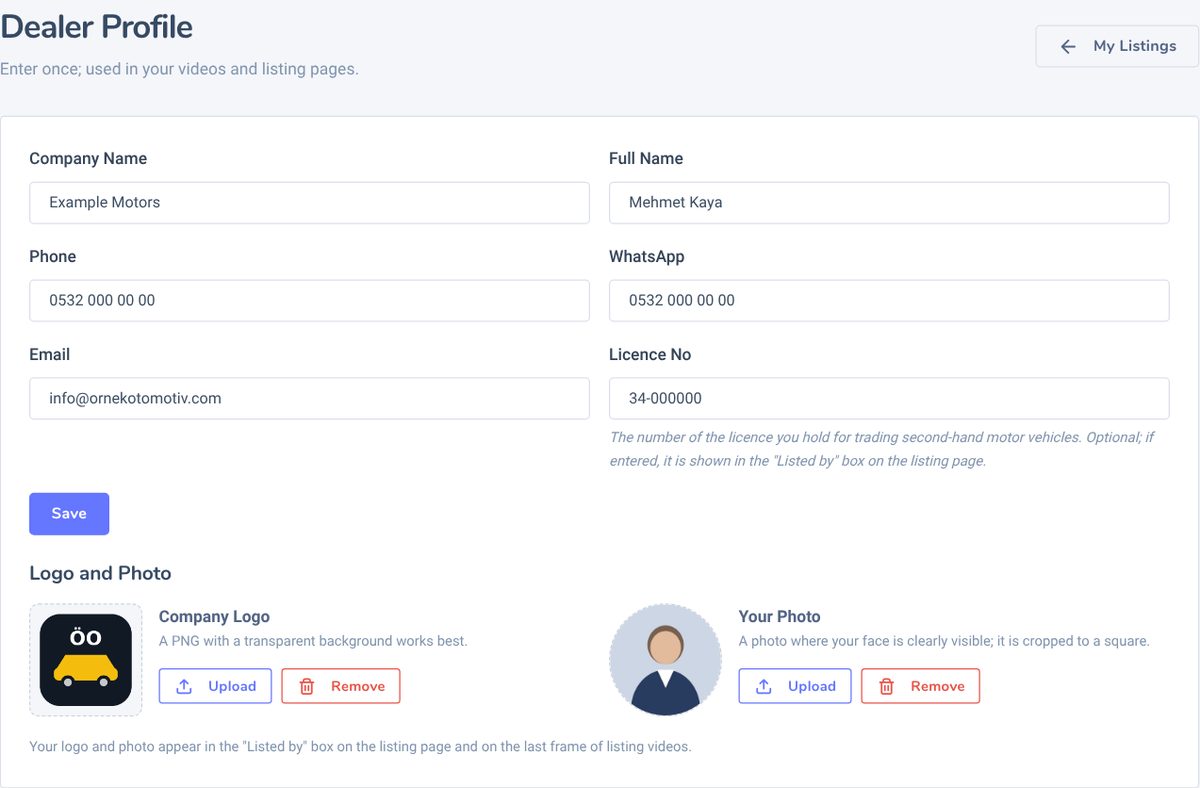
Press the Dealer Profile button at the top right of My Listings. You enter these details once, and they appear in the "Listed by" box on all your vehicle listing pages.
| Field | Where it is used |
|---|---|
| Company Name, Full Name | In the "Listed by" box on the listing page. |
| Phone | Shown on the listing page; the Call button dials this number. |
| The Message on WhatsApp button opens a chat with this number, with a ready message containing the listing title and link. You can type it as 0532 123 45 67; write foreign numbers with the country code (e.g. +31 6 12345678). | |
| As a clickable email address on the listing page. | |
| Licence No | The number of your licence for trading second-hand motor vehicles. Optional; if you enter it, it is shown in the "Listed by" box on the listing page. |
| Logo and Photo | Use Upload to add your dealership logo (a PNG with a transparent background works best) and a photo in which your face is clearly visible; the photo is cropped to a square. Both appear in the "Listed by" box on the listing page. Each image can be up to 10 MB. |
3.Creating a listing
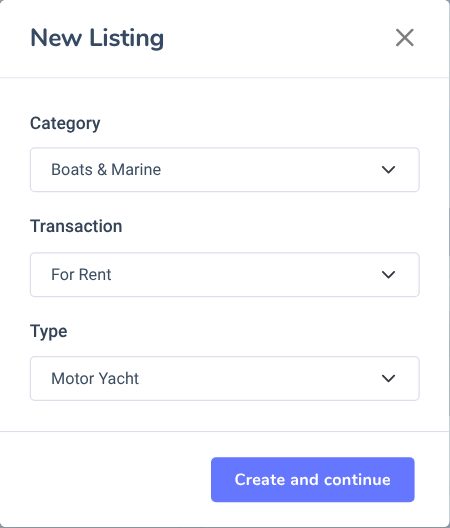
Press New Listing on the My Listings page. In the window that opens:
- Category: Car; Off-road, SUV & Pickup; Electric Vehicles; Motorcycle; Minivan & Panel Van; Commercial Vehicles; Marine Vehicles; Damaged Vehicles; Caravan; Classic Vehicles; Aircraft; ATV; UTV or Vehicles with Disabled Plates.
- Transaction and Type: These only appear when there is more than one option. Marine vehicles can be For Sale or For Rent, with 16 types such as motor yacht, sailing boat, gulet and jet ski. Commercial vehicles have 9 subtypes such as minibus, bus, truck, tractor unit, semi-trailer and trailer; electric vehicles cover motorcycles, ATVs, UTVs, kick scooters and utility vehicles; damaged, classic, aircraft, caravan and disabled-plate categories also have a type list. Each type has its own form with the details asked for that type.
- Press Create and continue; the listing opens as a draft and you go to the form.
An electric car is listed under Car (or Off-road, SUV & Pickup) with the fuel type set to Electric. You can have up to 50 draft listings at a time.
4.Entering the details
The fields depend on the category and type you chose and cover everything a listing portal asks for that vehicle. Fields marked with an asterisk (*) are required. The Completion bar at the top shows the percentage, and the line below it lists the required fields that are still missing.
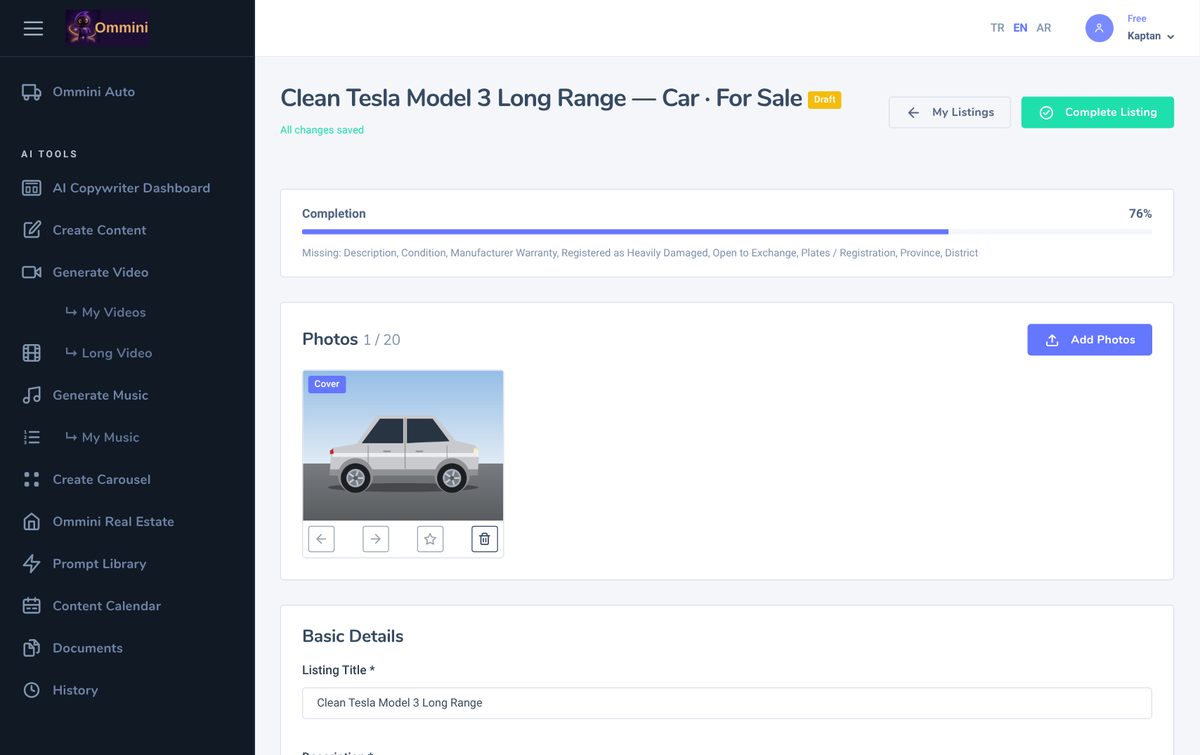
Basic Details
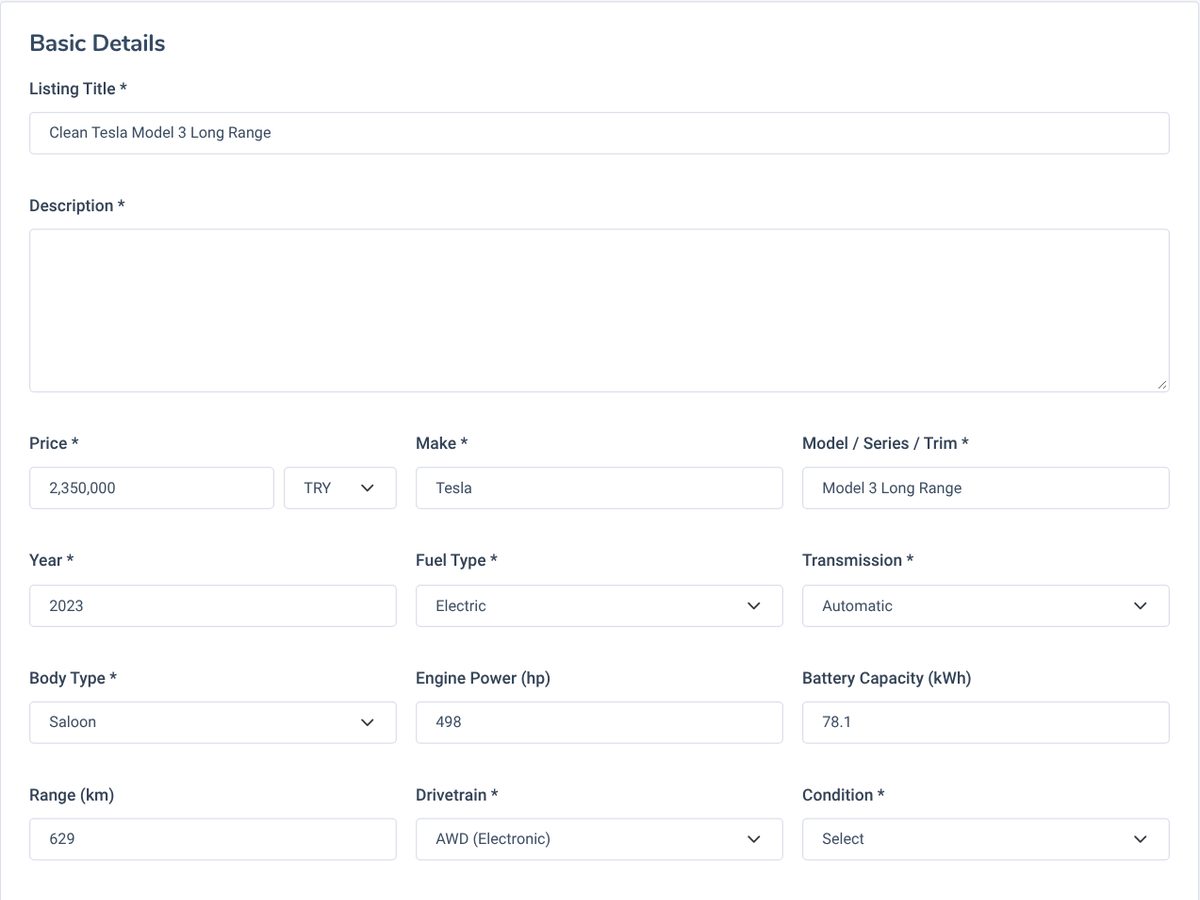
For cars: listing title, description, price and currency, make, model / series / trim, year, fuel type, transmission, body type, engine size, engine power, drivetrain, condition, mileage, colour, manufacturer warranty, heavy damage record, part exchange, plate / registration and licence plate. In other categories the form changes to suit the vehicle (e.g. length and number of cabins for a boat, engine size and stroke type for a motorcycle). Put details that are not in the form into the description.
Make is free text: a list of suggestions appears as you type, and you can also enter a make that is not on the list. Numbers such as price and mileage are formatted with thousands separators as you type (1,250,000) and appear on the listing page as 1,250,000 TRY. In the English interface, use a full stop for decimals (78.1). The year has no separator.
Fields that depend on the fuel type
When the fuel type is Electric, the Engine Size field is hidden and Battery Capacity (kWh) and Range (km) appear instead. For a plug-in hybrid, all three fields are shown. If you later switch the fuel type to electric, any engine size you entered earlier is not shown on the listing page. This applies to cars, off-road/SUV/pickups, minivans/panel vans, disabled-plate vehicles and commercial vehicle forms that ask for engine size.
Licence plate
The Licence Plate field is optional and is not shown on the listing page; it is there so you can keep track of which vehicle the listing is for. When you copy a listing, the plate is left empty.
Address
Province and district are required; neighbourhood is optional. They appear at the end of the summary on the listing page (e.g. Göztepe Mah., Kadıköy, İstanbul). Vehicle listings have no map.
Detailed Information
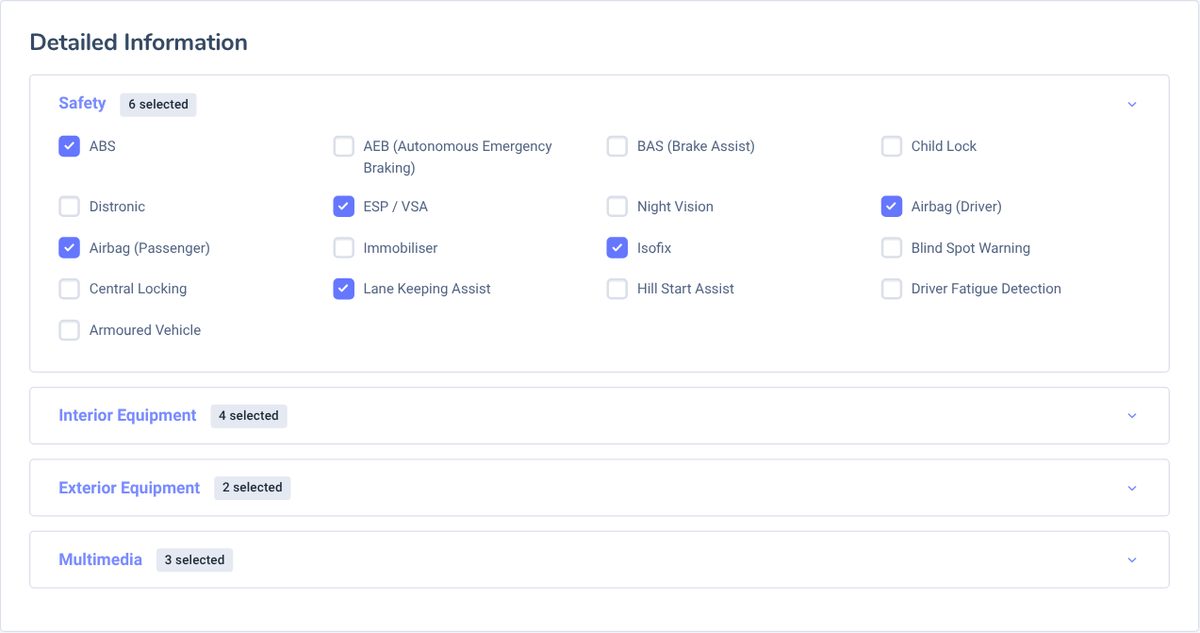
For cars there are Safety, Interior Equipment, Exterior Equipment and Multimedia groups; the groups change with the category (e.g. cabin, deck equipment and electronics for a boat). Press a group title to open its options; the badge next to the title shows how many you have ticked. These choices are listed under "Features" on the listing page, so only tick what the vehicle actually has.
5.Painted and replaced parts
Car, Off-road, SUV & Pickup and Minivan & Panel Van listings have a Painted or Replaced Parts card. Each of the 13 parts, from the front bumper to the rear bumper, starts as Original. Only change the parts that have been painted or replaced: Locally Painted, Painted or Replaced. Parts that are not original are highlighted in yellow in the form; the Set all to original button resets every choice.
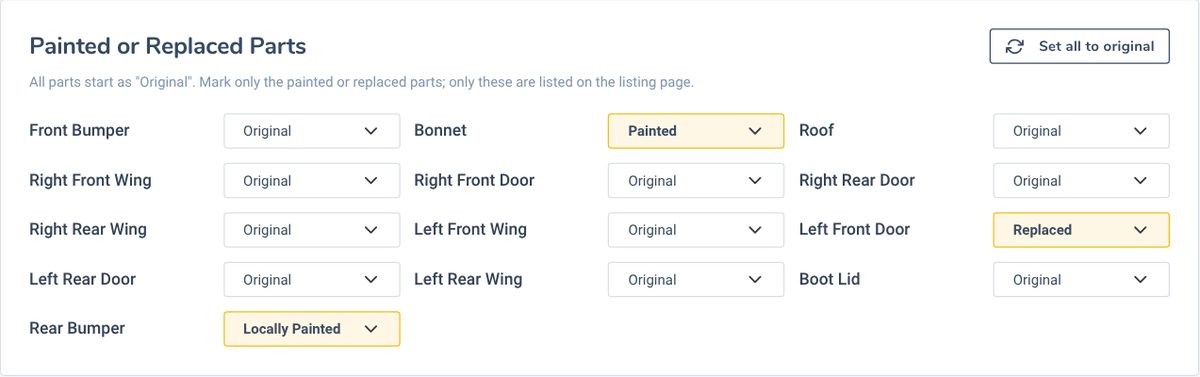
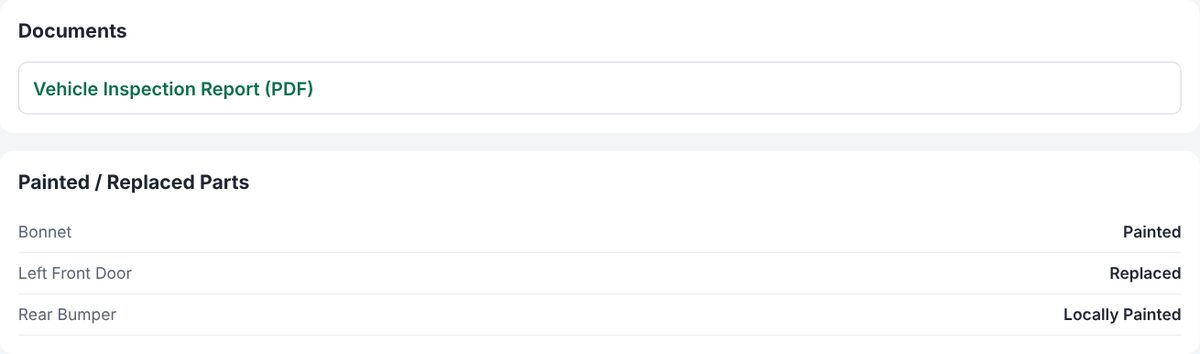
On the listing page, only the parts that are not original are listed under "Painted / Replaced Parts". If every part is original, the page says All parts are original.
6.Inspection report
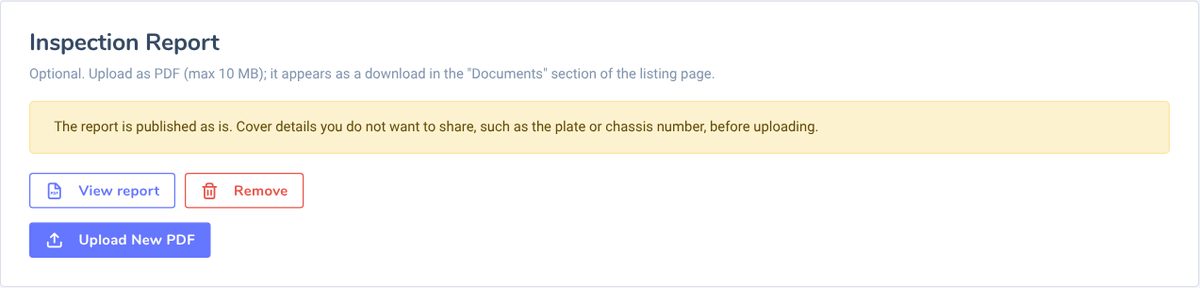
Every vehicle listing has an Inspection Report card. The report is optional; once you add it, an Vehicle Inspection Report (PDF) link appears in the "Documents" section of the listing page, and buyers can open it with one click.
- Choose the report with Upload PDF. Only PDF files are accepted, up to 10 MB.
- A listing has one report: a report uploaded with Upload New PDF replaces the old one. Use View report to check it and Remove to take it off the listing.
- When you copy a listing, the report is not carried over to the new one; it is deleted together with the listing or the account.
7.Drafts and autosave
The listing form has no Save button: everything you type is saved automatically about a second and a half after you stop typing. The line under the title shows the status; if you see All changes saved, everything is stored. If the connection drops, saving is retried every few seconds.
This means you can start a listing on your phone and continue on your computer: just press Continue on the draft card in My Listings, and the latest saved version opens on any device.
8.Photos
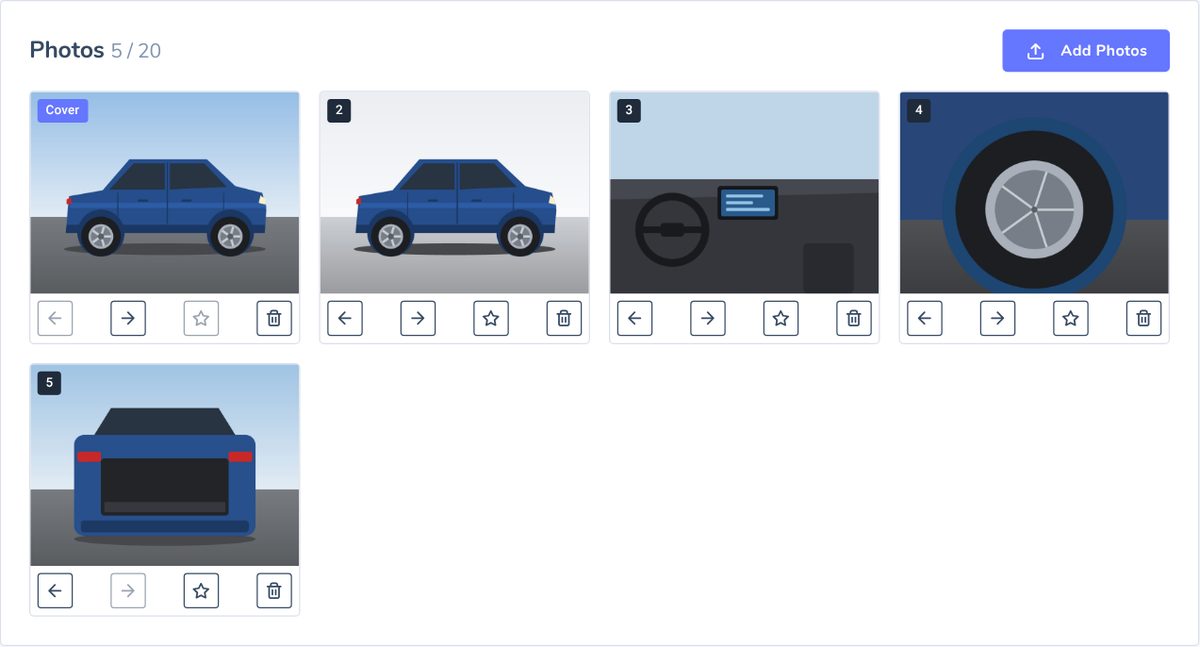
You can select several photos at once with Add Photos.
- A listing can have up to 20 photos.
- Format: JPEG, PNG or WEBP. Each photo can be up to 20 MB, with the shorter side at least 400 pixels.
- Large photos are scaled down so the longer side is 2560 pixels; phone photos taken sideways are turned upright.
- Location and device information inside the photo (EXIF) is removed when it is saved. If you do not want the plate to be visible, cover it before uploading; Ommini does not blur plates for you.
The buttons under each photo: ← move earlier, → move later, ☆ make cover, bin delete. The first photo carries the Cover label: it is used on the My Listings card, at the top of the listing page and as the preview image when the link is shared on WhatsApp or social media. Use your best exterior shot of the vehicle as the cover.
9.Completing a listing and your allowance
When all required fields are filled in and at least one photo is added, press Complete Listing at the top right. If something is missing, a list of the missing fields appears; fill them in and press again. A completed listing gets the Ready badge and its listing page goes live.
Monthly listing allowance
| Plan | Vehicle listings you can complete per month |
|---|---|
| Free | 1 (email must be verified) |
| Pro | 5 |
| Business | 50 |
- Your vehicle listing allowance is separate from Ommini Real Estate: if you use both with the same account, each has its own monthly allowance.
- The allowance is used when a listing is completed for the first time. Drafts do not use any allowance.
- Editing a ready listing does not use any allowance. If a listing goes back to draft and is completed again, the allowance is not used again.
- Deleting a listing does not give the allowance back. Allowances renew at the start of each month.
- When your allowance is used up, "Complete Listing" suggests upgrading your plan, and you can go to the Subscription page. If you need more than 50 listings a month on the Business plan, write to us at destek@ommini.com.
Editing a ready listing
Every change you make to a ready listing appears on the listing page immediately; you do not need to share the link again. If you clear a required field (e.g. the price), the listing returns to Draft and the page shows "not live". Fill the field in and complete it again, and the same link works again.
Copying a listing
If you are listing another vehicle of the same model, press Copy listing on its card in My Listings. A new draft opens with all the details and Detailed Information choices; photos, the inspection report, licence plate and mileage are not copied. Correct what is different and add the photos. The copy stays a draft until you complete it and does not use any allowance before then.
10.Listing page and sharing
Every completed listing gets its own permanent link: ommini.com/ilan/…. The link is in the Listing page is live box at the top of the listing form; copy it with Copy Link and share it on WhatsApp, in your Instagram bio, on Facebook or on your own website. The ready listing card in My Listings has the same option. Use the language selector to the left of the link to get the English or Arabic version of the page, and send that link to foreign buyers.

Sold, or taking a listing offline
- Mark as sold (Rented for a boat for rent): The page stays open and a red Sold label appears above the title.
- Take offline: The page closes; anyone opening the link sees "This listing is not available at the moment". Your listing and its details are not deleted.
- Publish again: Puts a listing you took offline or marked as sold back online with the same link. None of these actions use any allowance.
What the buyer sees
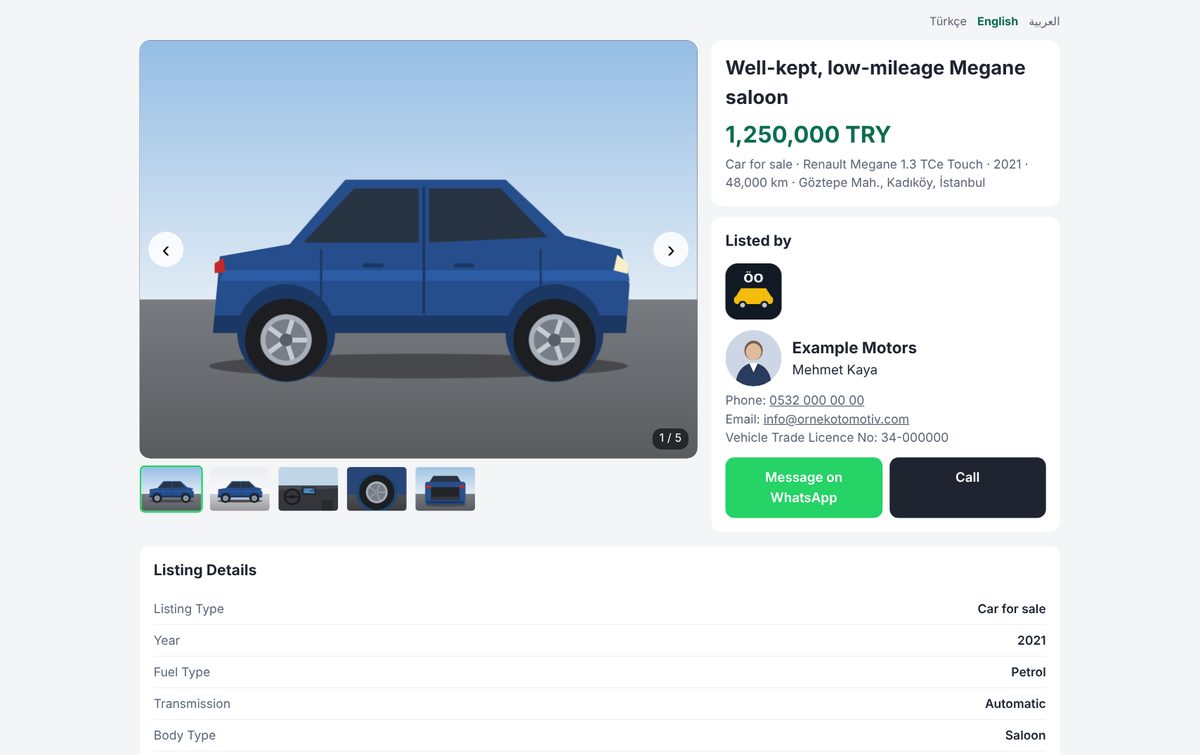
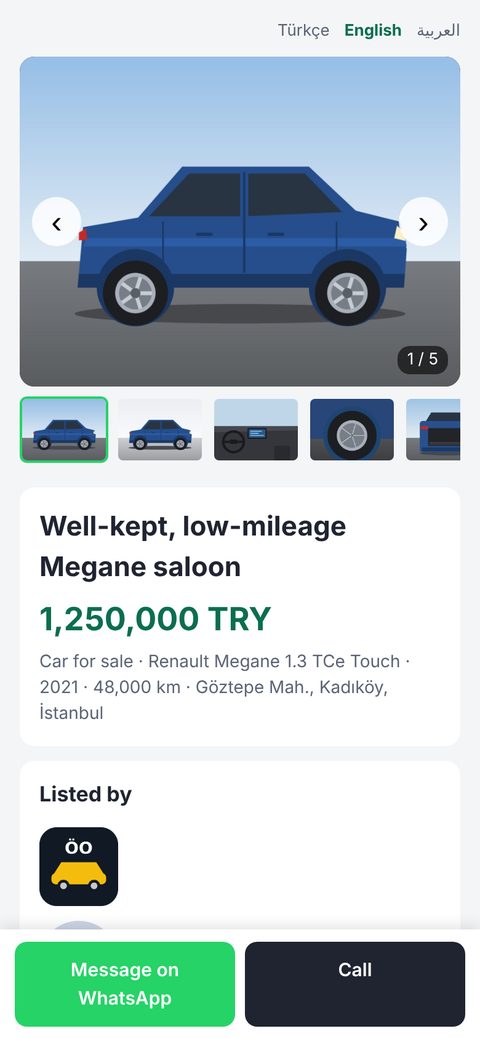
- Photo gallery: browse with the arrows, or swipe on a phone.
- Title, price and a short summary (listing type, make and model, year, mileage, location); the details table, the description and the features you ticked.
- The inspection report in the "Documents" section (if you added one) and the "Painted / Replaced Parts" section.
- The "Listed by" box: the logo, photo and details from your Dealer Profile, with Message on WhatsApp and Call buttons. On a phone, these two buttons stay fixed at the bottom of the screen.
Good to know
- On the English and Arabic versions of the page, field names and values appear in that language; the description stays as the Turkish text you wrote, with a note above it saying it is the dealer's original text.
- When the link is shared, the preview shows the cover photo, listing title, price and a short summary.
- The licence plate is not shown on the page.
- Listing pages are not listed in search engines such as Google; only people you share the link with can open them.
- A small "Made with Ommini Auto" line appears at the bottom of the page. On the Free plan it is always shown; on Pro and Business you can remove it by turning off the Watermark setting in Settings.
11.Frequently asked questions
Why did my listing go back to "Draft"?
You deleted or cleared a required field in a ready listing. In the meantime the listing page shows "not live". Check the list of missing fields at the top of the form, fill the field in and press Complete Listing again. The link stays the same and no allowance is used again.
The link I shared says "This listing is not available at the moment".
There are three possible reasons: the listing went back to draft, you took it offline, or it was deleted. The box at the top of the listing form shows the reason. If it is a draft, complete it again; if you took it offline, press Publish again. In both cases the same link opens again. The link of a deleted listing does not come back.
There are no WhatsApp and Call buttons on the listing page.
The Phone and WhatsApp fields in your Dealer Profile are empty, or Save was not pressed after typing them. Open the profile and check the details are there; if not, type them and press Save. All your listing pages update straight away.
The form for my electric vehicle has no Engine Size field.
That is expected: when the fuel type is Electric, engine size is not asked for and the Battery Capacity and Range fields appear instead.
The inspection report did not upload.
Check that the file really is a PDF and is smaller than 10 MB. If you photographed the report on your phone, convert it to PDF first.
A photo did not upload.
Check that the photo is JPEG, PNG or WEBP, smaller than 20 MB, with the shorter side at least 400 pixels. If the listing already has 20 photos, delete one before adding a new one.
I also use Ommini Real Estate. Do I share one allowance?
No. Vehicle and real estate listings are in separate panels, and each has its own monthly allowance. You can switch between them from the left menu.
I deleted a listing. Do I get the allowance back?
No. The allowance is used when the listing is first completed and does not come back when you delete it. Your allowance renews at the start of the next month.
I can't see a listing I started on my phone on my computer.
Make sure you are logged in with the same account on both devices and refresh My Listings. If you closed the page on your phone before seeing "All changes saved", the last few seconds of changes may not have been saved.
What happens to my listings if I delete my account?
When you delete your account with Delete Account on the Settings page, all your vehicle listings, photos, inspection reports and your Dealer Profile are permanently deleted, and the listing links no longer open. If you sign up again with the same email address, the allowance you used that month counts as used on the new account too.
If you have another question, write to us using the support bubble at the bottom right of the panel.